




A failed Mac Book has plenty of reasons. Hard disk error is one of the most common errors. So, whenever you encounter this issue, it is important for you to check the reason for the error and then fix it. Or else you will be unable to boot your Mac and also lose most of the important files or folders on your Mac. A smart way to do this is to rely on the Best Mac Cleaner. This will not just resolve the issue but will offer additional features.
There are two ways how you will fix the disc error:
Method 1: Repair Disk error with Disk Utility in Recovery Mode
Currently, your boot is not working so there are many issues that will help you fix the issue. Disk Utility, reinstall macOS, etc. and this helps in fixing the disk issues. Now is the time to explore how Disk Utility analysis and repairs disk errors.
Step 1: Get to Disk Utility on Mac startup
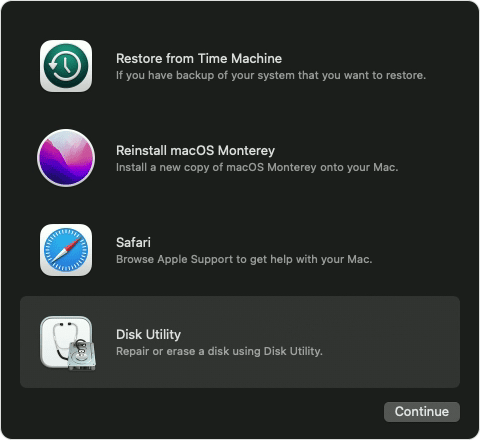
Start your Mac but in recovery mode. Here four options will be available that will help you resolve hardware or software issues.
Tap on Disk Utility and then tap Continue.
Step 2: Choose the disk you need to repair
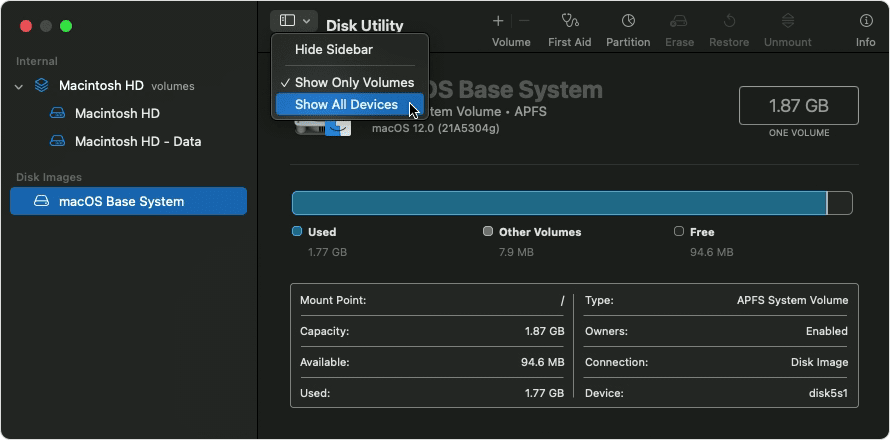
Check the left panel and you will notice the lists of the Mac startup disk and other connected drives.
Simply tap on the corrupted or damaged disk from there. Tap on any other drives you wish to repair.

Note: Before repairing disk errors, check the info available from the menu.
Step 3: Run First Aid to check and repair disk errors.
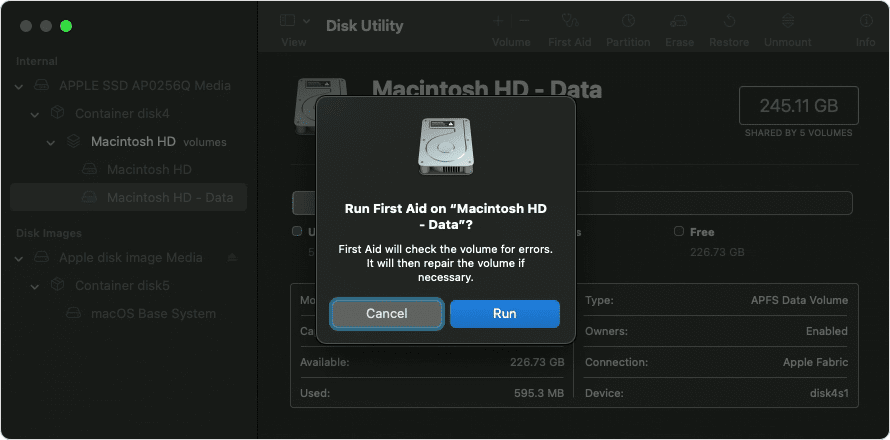
From the top menu, click on First Aid.
Next tap on the Run button and this will straightaway help launch First Aid on Mac.
2. In between you will encounter a pop-up, tap on continue
3. First Aid will allow you to analyze all the errors on preferred disk.
4. Tap on the ‘Done’ button and it will help you complete the disk repair when the First Aid process is complete.
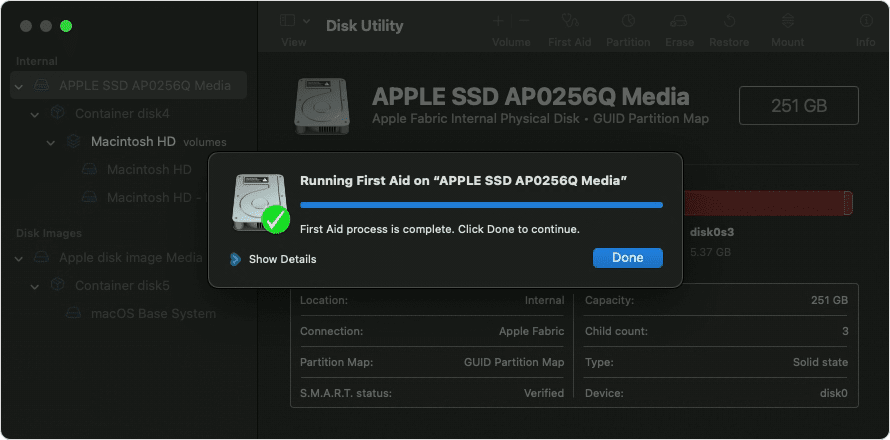
Finally, there will be three results after the process is completed. Next, tap on Show details in order to view.
Result 1: There are no issues or errors that need to be fixed.
The notification that follows will say something like, “The volume (the name of the disc) looks to be OK.”
Result 2: “Overlapped extent allocation” problems will appear.
It indicates that two or more files are using up the same area on your disc. See if you can replace or create each one of these. If not, look at the contents of the file to see if you can delete it.
Get “The underlying task reported failure” problems as the third result.
It indicates that the disc has not been completely fixed. Run Disk Utility once more and attempt to fix the broken disc. Make a backup of your data if it cannot be done, then reformat the disc.
Way 2: Repair Mac Hard Disk in Single User Mode
In addition to Disk Utility, fsck, commonly known as file system consistency check, is a built-in disc diagnostic and repair tool in the Mac recovery boot that may inspect the current starting disc and fix it. But you must switch to Mac single-user mode in order to utilize it fully via the command line.
Step 1: Launch your Mac in single-user mode.
Your Mac should now be running. Hold down Command + S on the keyboard while the startup tone plays. Release the keys after you see a text-code blank screen. You can now successfully access your Mac in single-user mode. Just wait for it to fully boot up, which should take a few seconds.
Step 2: Inspect and fix the installed startup disc.
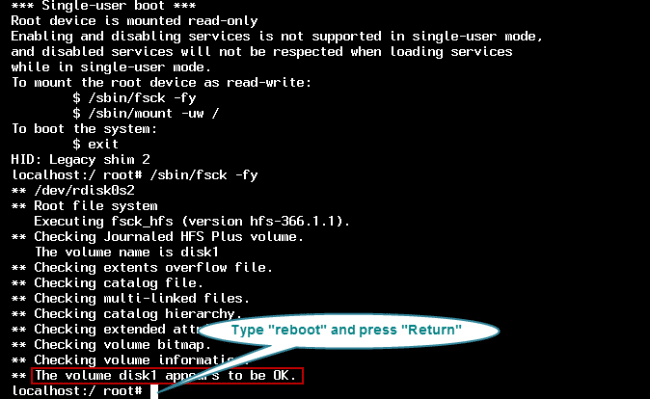
Normally, if Mac has properly booted in single-user mode, the final line should end in root#. Enter the following command and hit Return immediately after the root# prompt: /sbin/fsck -fy
Wait for it to check your Mac’s hard disc, checking things like the volume bitmap, extended attributes file, catalog file, multi-linked files, catalog hierarchy, extents overflow file, and extents overflow file. The volume (name of your hard disc) appears to be OK, or “FILE SYSTEM WAS MODIFIED,” will then prompt you. Then you will see the root# prompt again.
Step 3: Reboot Mac and exit single-user mode.
Enter the command “reboot” and press the Return key again. Then your Mac will restart normally from the hard drive.
We hope the aforementioned steps will help you solve the issue.
The simplest way is to download the Best Mac Cleaner. This will certainly resolve plenty of issues immediately. In addition, it will detect the reason for the disc error and solve it within the shortest possible time.